Issuing an invoice in Fakturuj.si takes less than 2 minutes. In this guide, we’ll walk you through the entire process step by step — from opening the form to the finished invoice, which you can email to your client or download as a PDF.
1. Open the new invoice form
After logging in, the Dashboard will appear. At the top, you will see three quick actions — click on “Create new invoice” (first from the left).
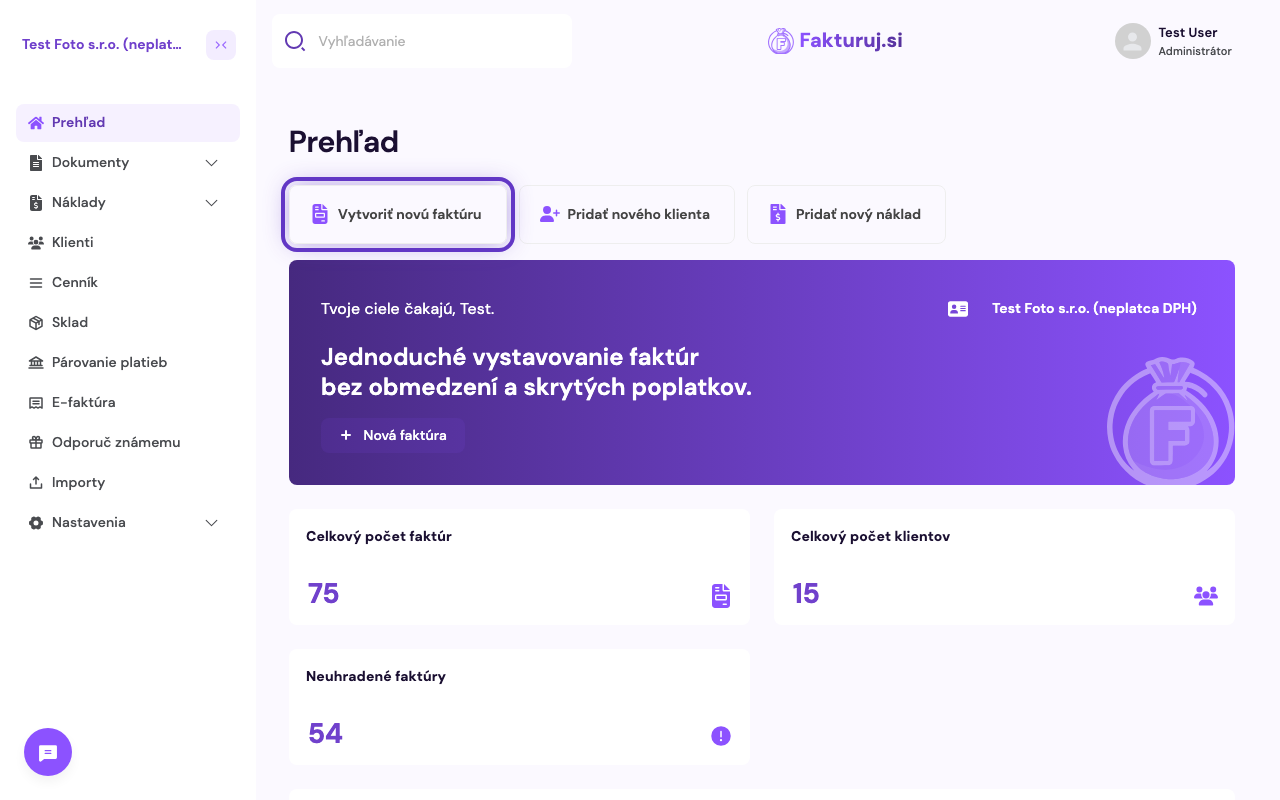
You’ll also find the same button on the Invoices page (Documents → Invoices) in the top right-hand corner — so you can create a new invoice from anywhere in the app.
2. Check the basic details
The “New Invoice” form will open. Most fields are already pre-filled and you can leave them as they are or edit them:
- Invoice number — generated automatically based on the set numbering sequence (e.g.
20260022) - Variable symbol — generated automatically based on the invoice number, max. 10 digits, no letters or other characters
- Currency — defaulted to the company’s country (EUR for SK, CZK for CZ); can be changed to USD, GBP and others
- Issue/Delivery Date — today’s date
- Due date — automatically +14 days
- Payment method — default is Bank transfer
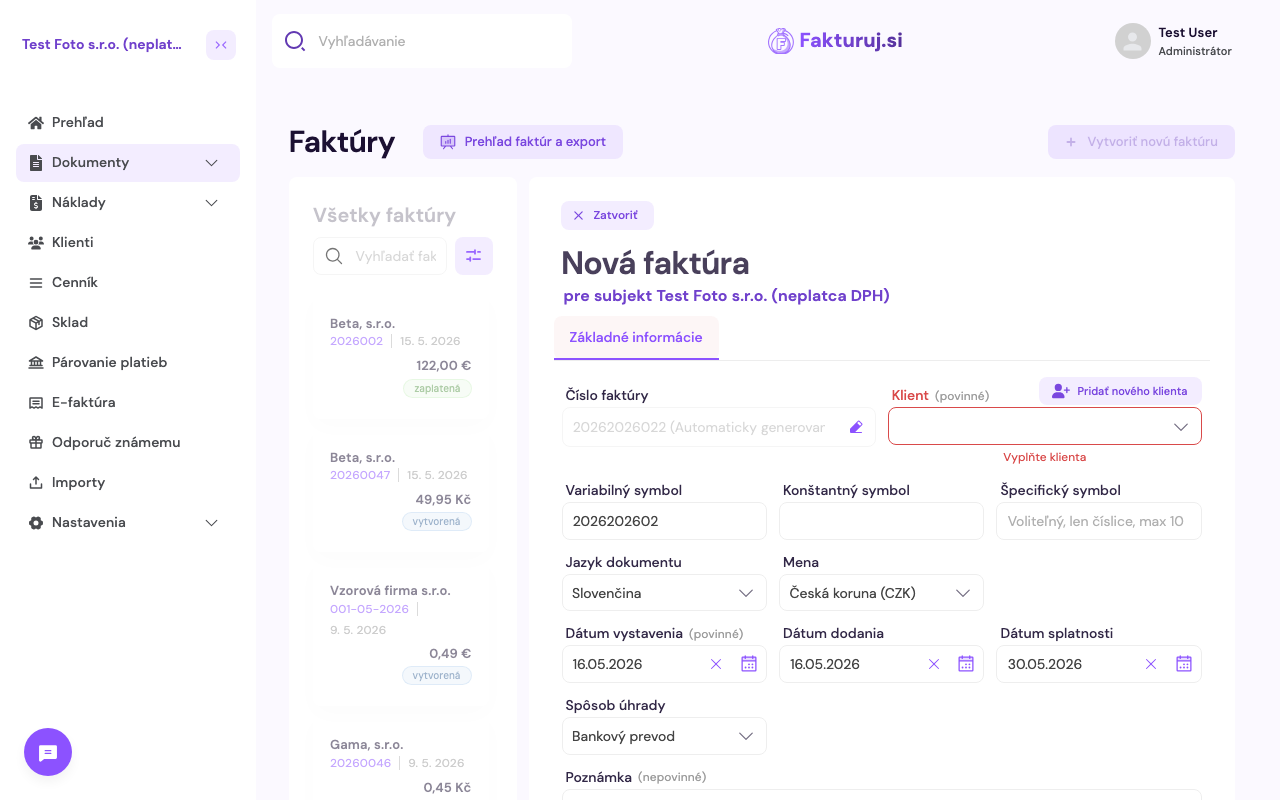
The only mandatory field that you must fill in manually is Client.
3. Select a client
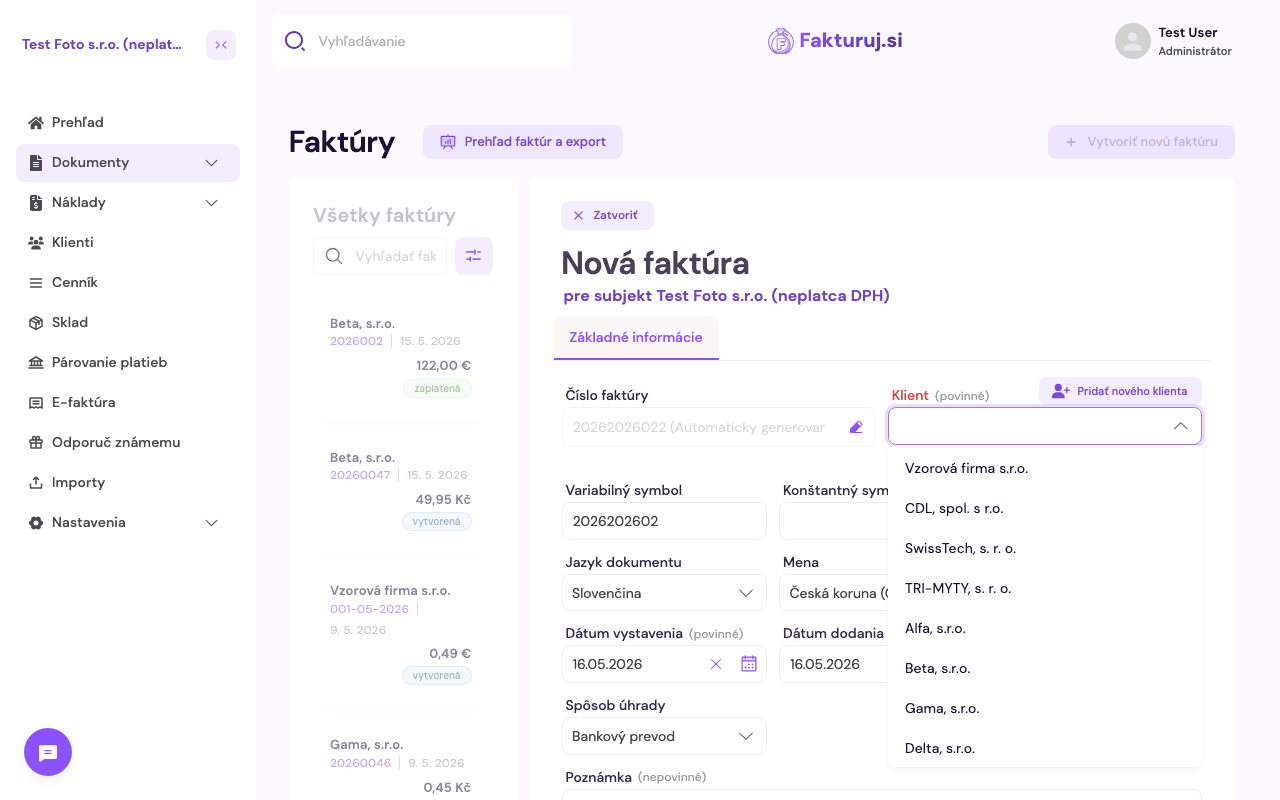
Click on the “Client” field in the top right-hand corner. A list of your existing clients will open — you can:
- select an existing client from the list,
- search for a client by name (just start typing),
- add a new one using the “Add new client” button next to the field.
4. Add invoice items
Scroll down the form and click on “+ Add new item”.
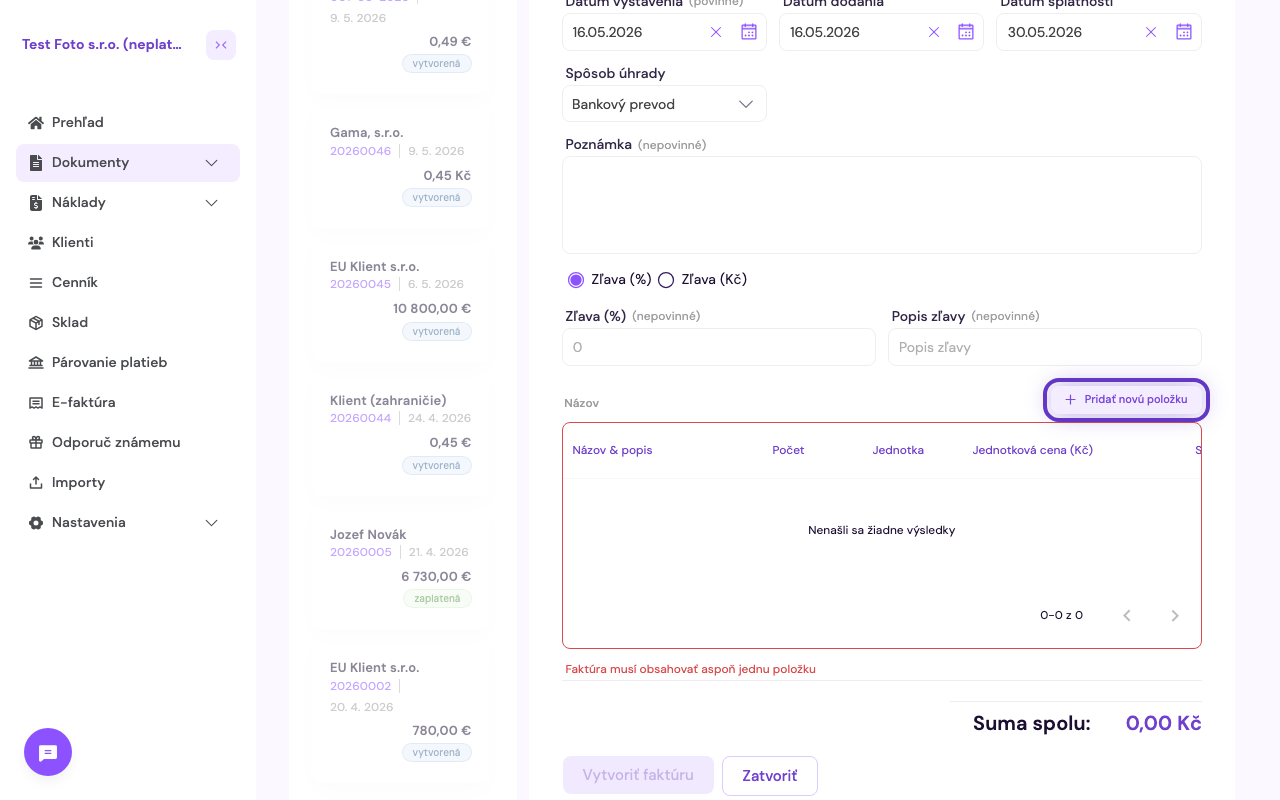
An empty row will be added, where you fill in:
- Name and description — exactly what you are invoicing (e.g. “Consultancy services”)
- Quantity — how many units
- Unit — pcs, hours, kg… (default is pcs)
- Unit price (€) — price per unit excluding VAT
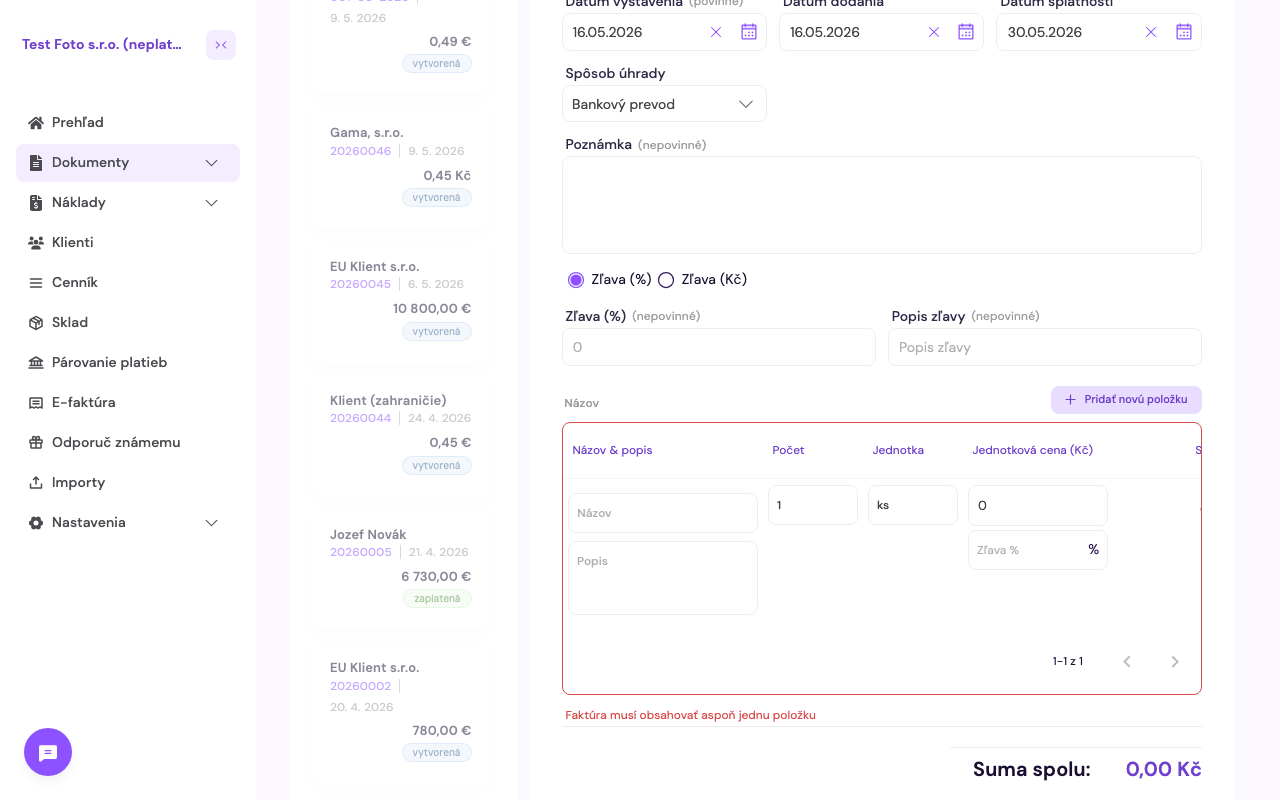
The total is automatically calculated in the Total (€) column and the grand total is displayed below the table as Total.
5. Issue the invoice
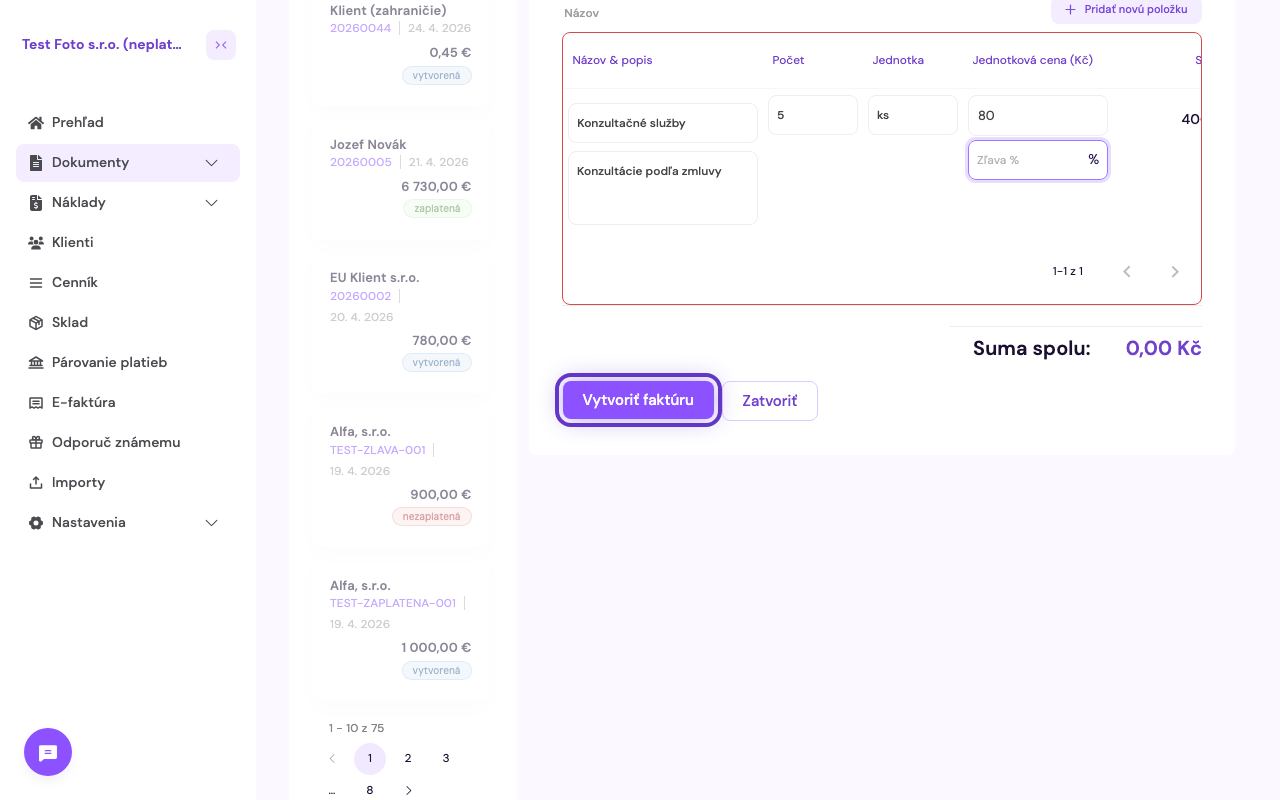
Once you have selected a client and at least one item with a price, the “Create invoice” button at the bottom left will turn purple and become active. Click on it.
6. Done — what to do next with the invoice
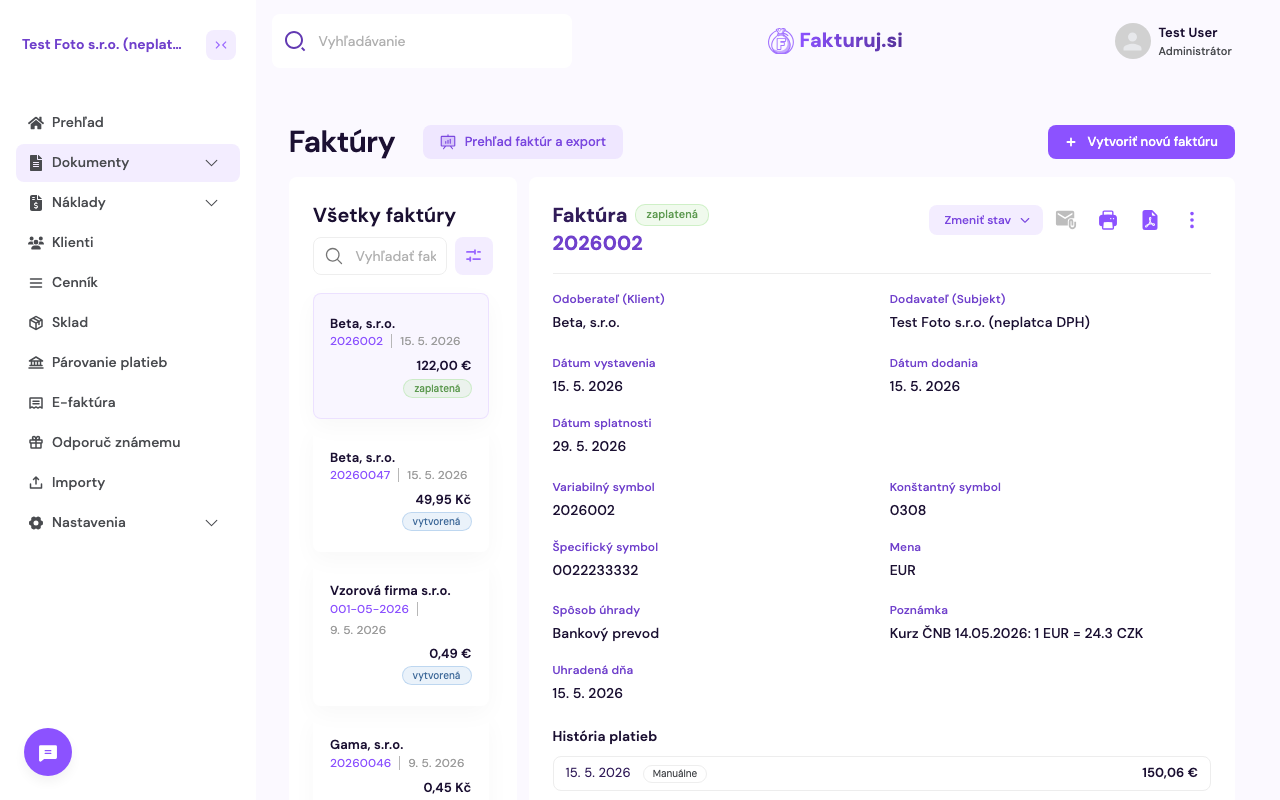
The invoice has been issued. A preview with all the details and items will open. At the top right, you’ll find all the options:
- Send by email — sends the PDF directly to the client
- Print — print preview
- Download PDF — saves to your hard drive
- “Change status” — paid, pending, etc.
- ⋮ menu — duplicate, issue a credit note, delete
Frequently asked questions
Can I edit an invoice after it has been issued?
Yes, provided it hasn’t been sent to the client yet. Open the invoice and click ⋮ → Edit. For invoices that have already been sent, a credit note is usually issued (due to legal requirements).
How do I add VAT?
If your business is a VAT-registered entity, the rate is added to each item separately (default 23%). If you are not a VAT-registered entity, items are invoiced without VAT.
What is the QR code on the invoice?
Fakturuj.si automatically generates a QR code for payment — PAY by Square for Slovakia, SPAYD for the Czech Republic. The client scans it in their banking app and all payment details are filled in for them. This works if you have an IBAN entered in your profile.
Can I issue an invoice in a different currency?
Yes — when creating an invoice, change the Currency field (USD, GBP, CZK…). The amount will be displayed in the selected currency.