The look of your invoice is a reflection of your business. In Fakturuj.si, you set everything up once and every new invoice will automatically feature your logo, colours and QR code. In this guide, we’ll go through all the options.
Where to find the settings
In the left-hand menu, open Settings → Invoicing. On the left, select the entity for which you want to customise the appearance — each entity has its own settings.
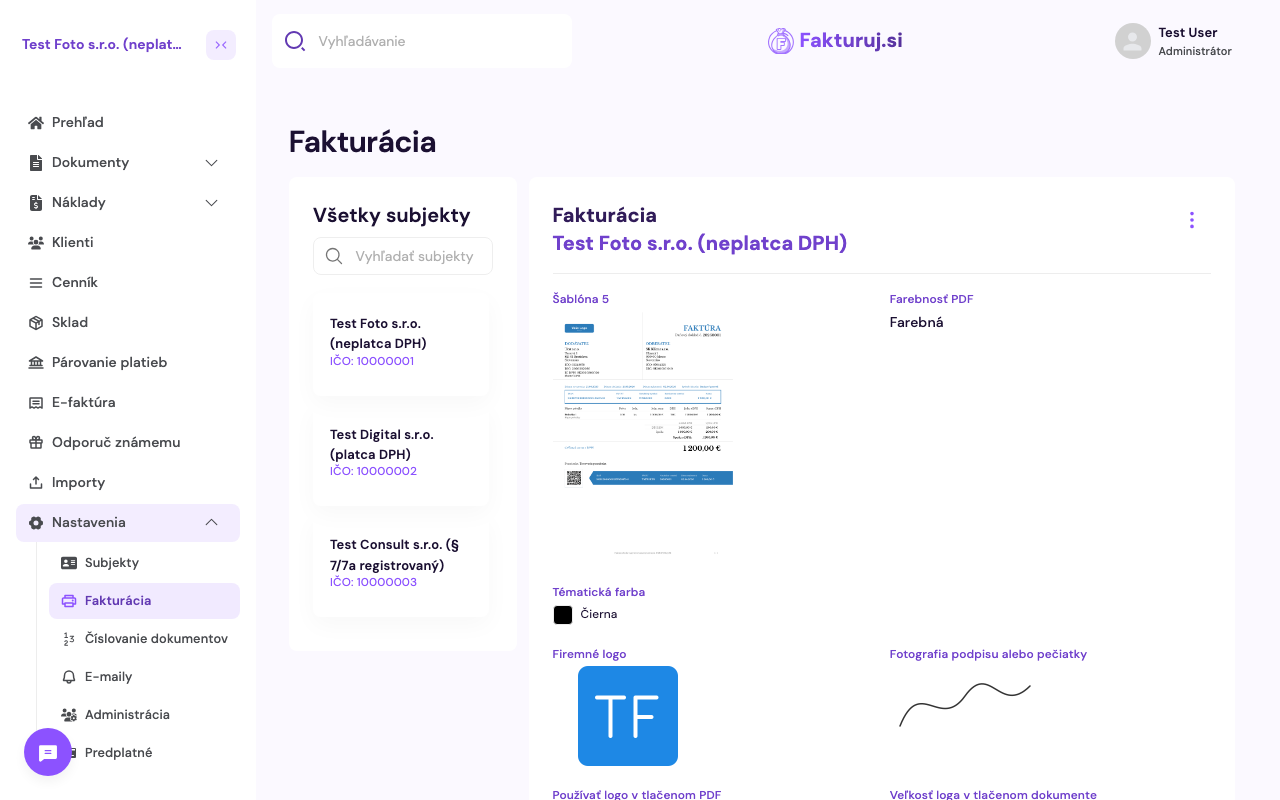
In the top right-hand corner, click the ⋮ menu and select Edit — a form divided into three logical sections will appear: Print Settings, Print Colour Settings and QR Payment Settings.
Print Settings — template, logo, signature
- Template used in the printed PDF — there are 5 design templates to choose from. You can see visual previews of them directly in the editor; simply click on the option you want.
- Company logo — upload via Select photo (from computer) or Upload photo (drag & drop). You can remove the logo at any time using the bin icon.
- Photo of signature or stamp — optional, if you want a handwritten signature or stamp on the invoice. Ideally, upload a transparent .png file for the best result.
- Use logo in printed PDF — toggle switch. Turn this off if you want a clean PDF without a logo (e.g. when printing on company letterhead).
- Logo size in the printed document — five levels: Smallest / Smaller / Medium / Larger / Largest.
Print colour settings
- Theme colour — the accent colour on the invoice (lines, headings, payment strip). Choose Black (default) or Custom colour and enter your own hex code to match your brand.
- PDF colour scheme — three modes:
- Black and white — the entire invoice in black and white (saves toner)
- Colour — full-colour PDF with theme colour (default)
- Economy (for printing) — a compromise, saves ink when printing but maintains readability
QR payment settings and more
- If an IBAN is entered, add a QR code for payment to invoices — a toggle for a QR code for quick mobile payments. We support both the Slovak PAY by square and Czech SPAYD formats. If you invoice foreign clients who do not use QR codes, you can selectively disable it for a specific client in their settings — this will not affect the global settings.
- Default invoice note (optional) — text that is automatically added to the Note field on every new invoice. This is useful, for example, for payment reminders, information about complaints, or to thank a client.
- Default document language — the language in which a new invoice is created (Slovak, Czech, English, …).
After making changes
Click Save. The settings will apply to all subsequent invoices.
Frequently asked questions
What is the best logo format?
PNG with a transparent background, width 300–500 px — the logo will fit perfectly into the invoice header without a coloured square around it. JPG can also be used, but it lacks transparency, so the logo will have a coloured rectangle (usually white) behind it.
Can I include a signature on the invoice?
Yes — in the Signature or Stamp Photo field, upload a scan of your signature or stamp (PNG with a transparent background).
The QR code isn’t showing on the invoice — what should I do?
Check that you have: (1) QR payments enabled, (2) an IBAN entered in the payee field. Without an IBAN, Fakturuj.si cannot generate a QR code.
What is the difference between the Colour and Economy versions?
The Colour version features full-colour accents (payment strip, logo, headings). The Economy version keeps the text legible but renders colour elements with reduced intensity — suitable for printing on a black-and-white printer or when saving toner.